GLOWB LIGHTS
Help & Setup Guide
Everything you need to shape, power, and control your Glowb — plus quick fixes for common questions.
Help Index
Connect power
Shape into sphere
Power on
Activate remote controller
Light sensor
Brightness
Light effects
5-Hr timer
Shape
Wireless Remote
Lights won’t turn on during the day
Remote controller doesn’t work
Lights stay on indefinitely
Timer doesn't seem to work
Shape wont lock/release
Wireless Remote
User Instructions (PDF)
~
Quick Start
Get your Glowb glowing in under two minutes.
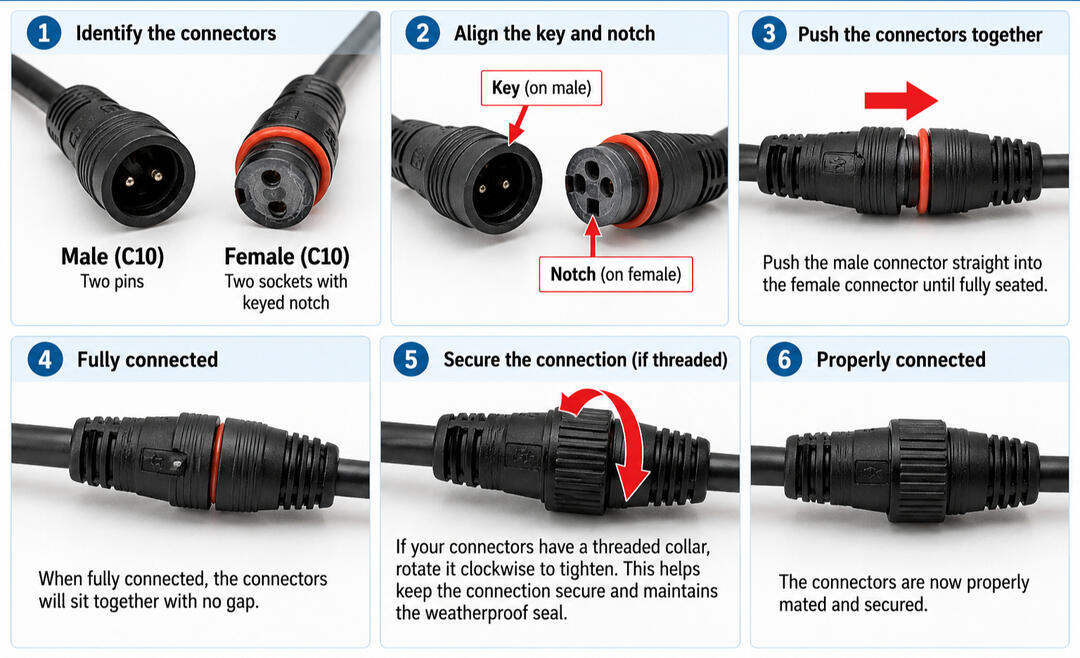
1. Connect power
To connect: with the power disconnected, align the notch and corresponding key, push the connectors straight together, and secure any locking collar. Don't force the connection if it resists.
2. Shape into a sphere
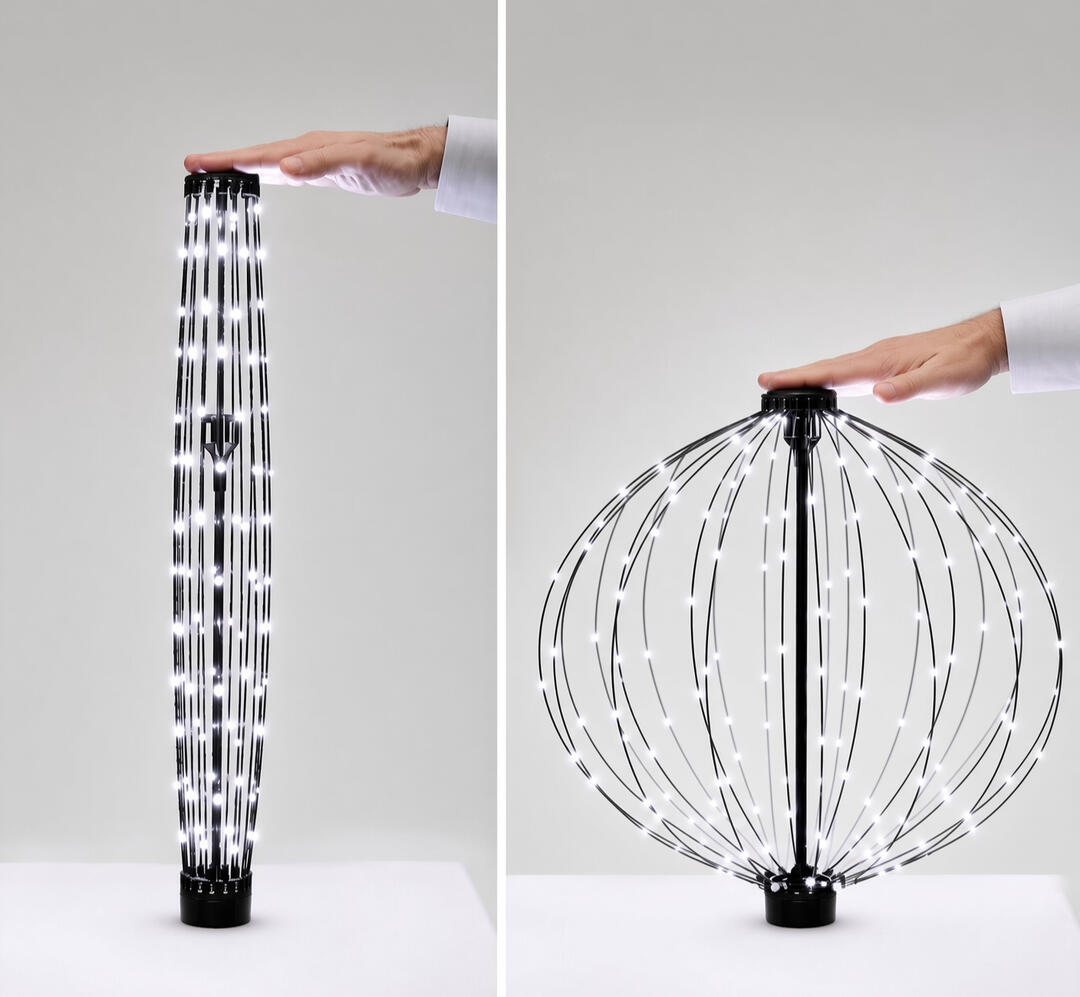
Compress one end until the lock clips engage with the hub. To release, pinch the clips together.
3. Power on
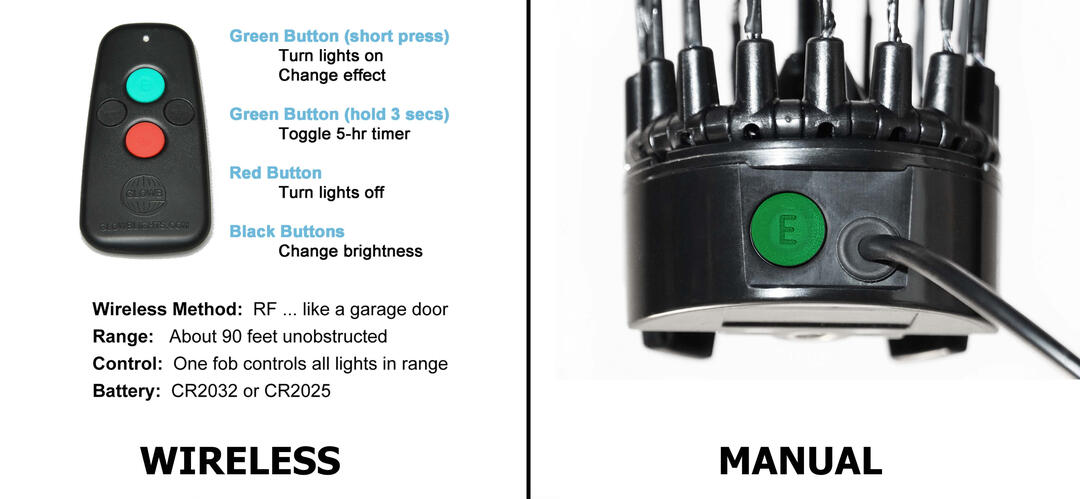
Apply power — the lights come on at low brightness. Use the button on the light or the remote to control everything.
4. Activate remote control
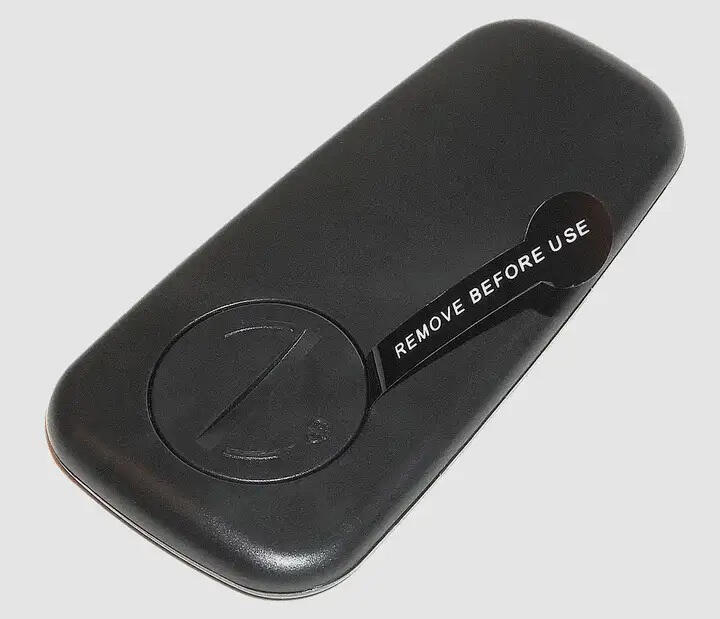
Pull out the clear plastic insulator ribbon from the remote before first use so the buttons work.
~
Features
All the controls and modes built into your Glowb.
Light Sensor
Sensor uncovered: Lights turn off in daylight. Covered: Lights stay on even in daylight. (Primarily used to save battery power)
Brightness
You can more completely deactivate the sensor by covering it with electrical duct seal/tape or black butyl rubber putty. This will allow you to reactivate it later. For a permanent solution, you can put a couple coats of dark nail polish on the sensor then cover it with the switch for insurance.
Light Effects
Short press the manual button to cycle through 6 effects: Steady On - Twinkle - Fade - Pulse - Chase - Combo. After Combo, one more press turns the lights off.
5-Hour Timer
Hold the manual button for more than
3 seconds to toggle the timer.
5 flashes = timer activated
2 flashes = timer disabled
Shape
Glowb Light can be used in a tall tube shape or in a perfect sphere shape (compressed). Press on one end until the lock clips engage. Pinch the clips together to release the shape. (Keep away from small children.)
Glowb Light can be used in a tall tube shape or in a perfect sphere shape (compressed). Press on one end until the lock clips engage. Pinch the clips together to release the shape. (Keep away from small children.)
Wireless Remote
_________ Green Button (Short Press) _________
If lights are off, a short press will turn them on. If lights are on then a short press will change to the next light effect._________ Green Button (Long Press) _________
Hold 3 seconds to toggle 5-Hr timer+/− buttons change brightness.Red button turns lights off.One remote controls multiple Glowbs if within range (~90 feet). Remove insulator ribbon before 1st use.
~
Troubleshooting
Quick answers to the most common questions.
Lights won’t turn on during the day
The light sensor may be active. Cover the sensor near the control end of the unit.
In a very bright environment, light may find its way to the light sensor and turn off the light. The sensor was designed to turn the lights off in daylight - when they would be barely visible.
~
Remote controller doesn’t work
Pull out the black plastic insulator ribbon. Replace controller coin type battery (C2032). Insure Glowb Light is powered on.
~
Lights stay on indefinitely
There are several ways to prevent "always on"...
1. Activate the light sensor
2. Enable the 5-hour timer
3. Use an external timer
4. Unplug power
5. Turn off
~
Timer doesn’t seem to work
Hold the manual button more than 3 seconds. If 5 flashes (on) or 2 flashes (off).
~
Shape won’t lock or release
Compress firmly until the clips engage. Pinch both clips together to release.
~
When power is removed, the light returns to its default (low brightness/steady-on effect). If you want to maintain the light settings, we recommend using the light sensor &/or 5-hr timer and keep the light powered on.
~
Full User Manual
Complete instructions in PDF format. (Diagrams and detailed button sequences).
~
Contact
Still neeed help?
Out of warranty? ~ We still want to do all we can to help you display your lights. Please contact us below if you have any problems or questions and we'll do our best to assist!
~